How to put text behind a person in Canva (and where it falls short)
Step by step: put text behind a person or object in Canva with Magic Grab or BG Remover. Plus what's awkward about it and a faster option on iPhone.
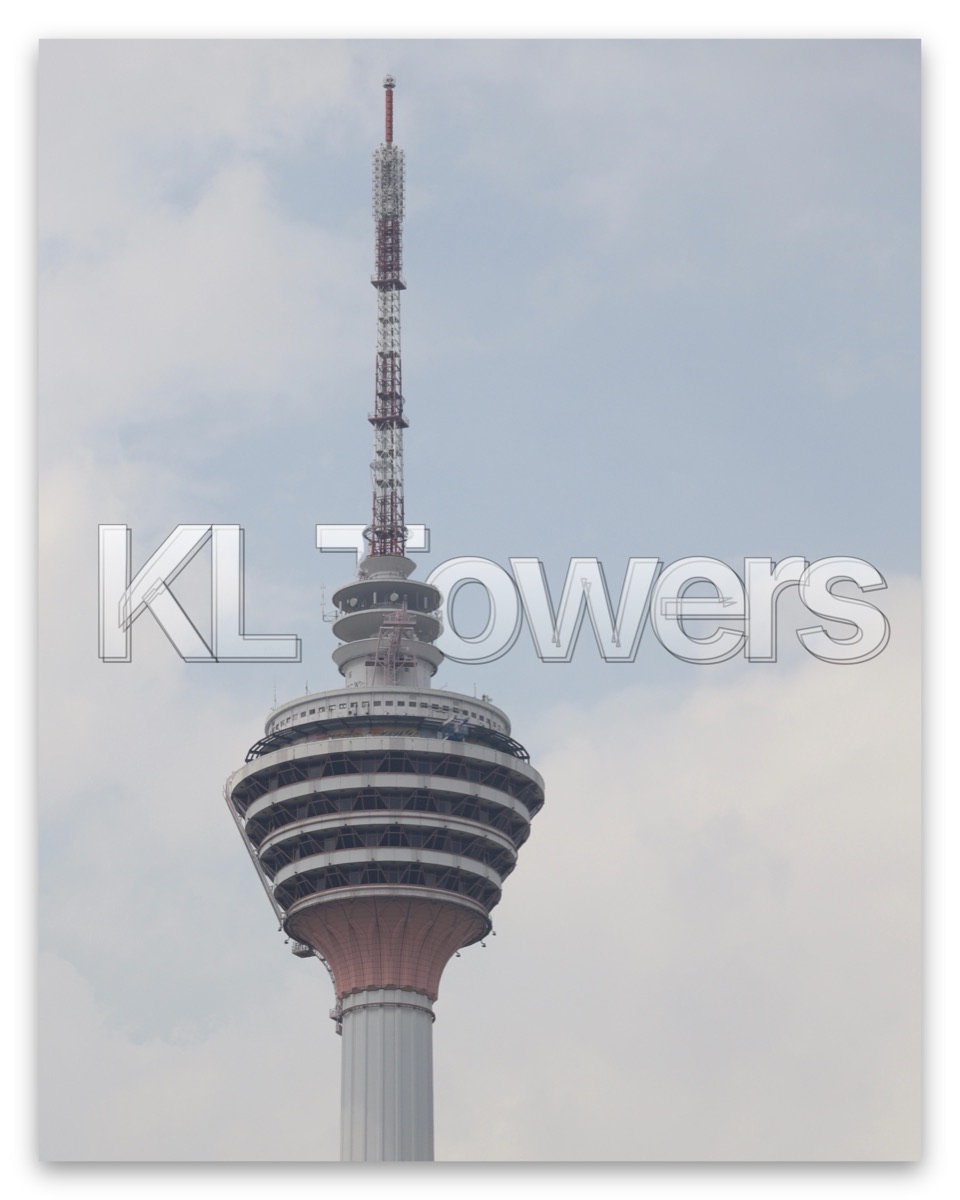
Canva has no "text behind subject" button, but you can get the effect by splitting your photo into two layers and sliding the text between them. It works in the browser and in the Canva app. Here is the method, and the places where it gets fiddly.
What you need
- A photo with a clear subject (a person, a building, a pet).
- A Canva account. The two tools that separate the subject, Magic Grab and BG Remover, are Canva Pro features. Free accounts can't use them.
Method 1: Magic Grab
- Open Canva and start a design, then upload your photo and drop it on the page.
- Click the photo, then choose Edit Photo and Magic Grab.
- Click or brush over your subject. Canva lifts it out as its own layer and fills in the gap behind it.
- Add your text from the Text panel and style it. Make it big.
- Select the text box, open Position, and use Backward until the text sits behind the subject but in front of the background.
Method 2: BG Remover and a duplicate
- Place your photo on the page and duplicate it so you have two identical copies stacked on top of each other.
- Click the top copy and choose Edit Photo, then BG Remover. You now have a cut-out subject on top of the full photo underneath.
- Add your text, then use Position and Backward to put it between the two layers: in front of the full photo, behind the cut-out.
This is the same idea as the Photoshop method, just with fewer controls.
Where Canva gets awkward
- It needs Pro. Both separating tools are paid, so the free plan can't do it.
- Edges depend on the cut-out. Hair, fur and fine detail can look rough or too clean, and there's no brush to fix a mistake the tool made.
- Many small steps. Duplicate, remove, add text, reorder layers. If you want to try five fonts or move the text a bit higher, you're back in the layer controls each time.
- Text only goes behind the subject. There's no way to say "put this behind everything closer than that wall". For landscapes and city shots with no single subject, you end up masking by hand.
- It's a general design tool. Canva is excellent for posters, decks and social graphics, but it doesn't read your camera details or split a panorama into a carousel for you.
None of that makes Canva a bad choice. If you already make your posts there and have Pro, the method above works. Canva is on the web, iPhone, iPad and Android, which is a real advantage if you switch between devices.
A faster option on iPhone
If you only want the look, an app that finds the subject for you does the whole job in one step. In layrd, you pick a photo, type the title, and choose Subject under Depth. The text slips behind the person or object, and you can drag, resize and restyle it afterwards without touching layers. It can also place text at a chosen distance, which is what you want for skylines and landscapes.

If you just want to try the effect once, the free text behind image tool runs in your browser and never uploads your photo.
For a comparison of more apps, see the best apps to put text behind a subject. For font ideas that read well behind a subject, see the best fonts for text-behind-image photos.
Frequently asked questions
Is text behind image free in Canva?
Not fully. The tools that separate your subject from the background (Magic Grab and BG Remover) need Canva Pro. You can try the free browser tool linked above, or do it by hand with the free layers in another app.
Can I do this in the Canva phone app?
Yes. The same tools and the same Position controls are in the iPhone and Android apps, though a small screen makes careful layer ordering slower.
Why does my text show in front of the subject?
The text layer is above the cut-out. Select the text, open Position, and move it Backward until it sits below the cut-out layer but above the background layer.
Does Canva upload my photo?
Canva is a cloud service, so your designs are stored in your account. layrd and our browser tool find the subject on your own device and don't upload your photo.