How to put text behind a subject in Canva or Photoshop
The three-layer method behind every text-behind-subject photo, with the exact clicks in Canva and in Photoshop, and how to fix the usual mistakes.
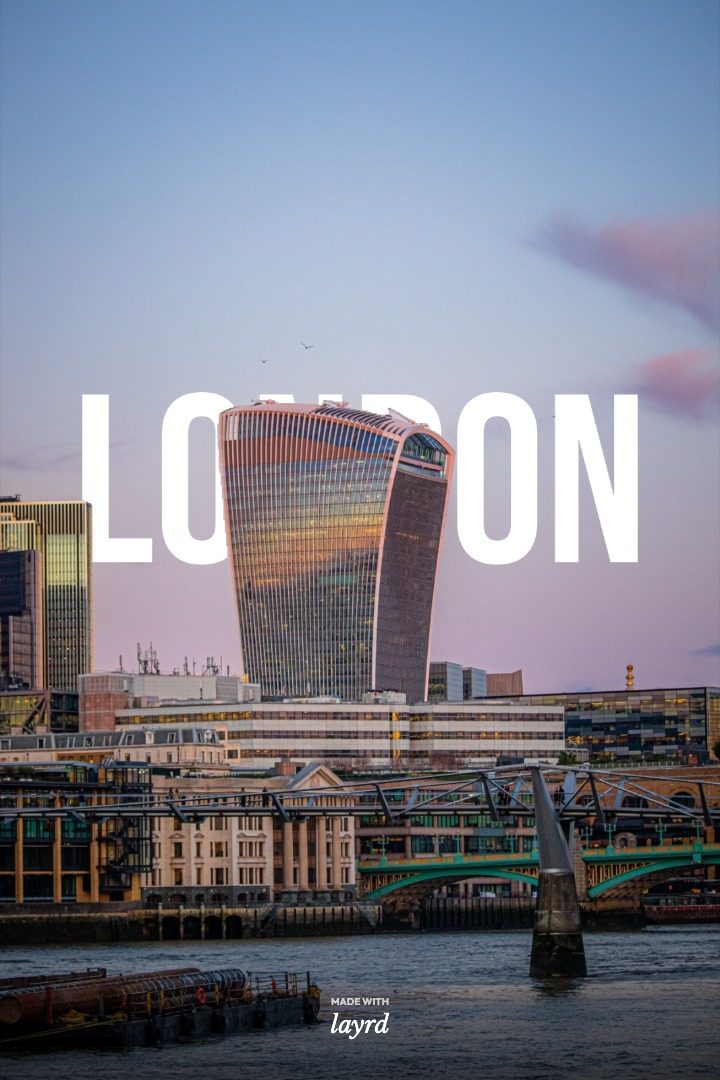
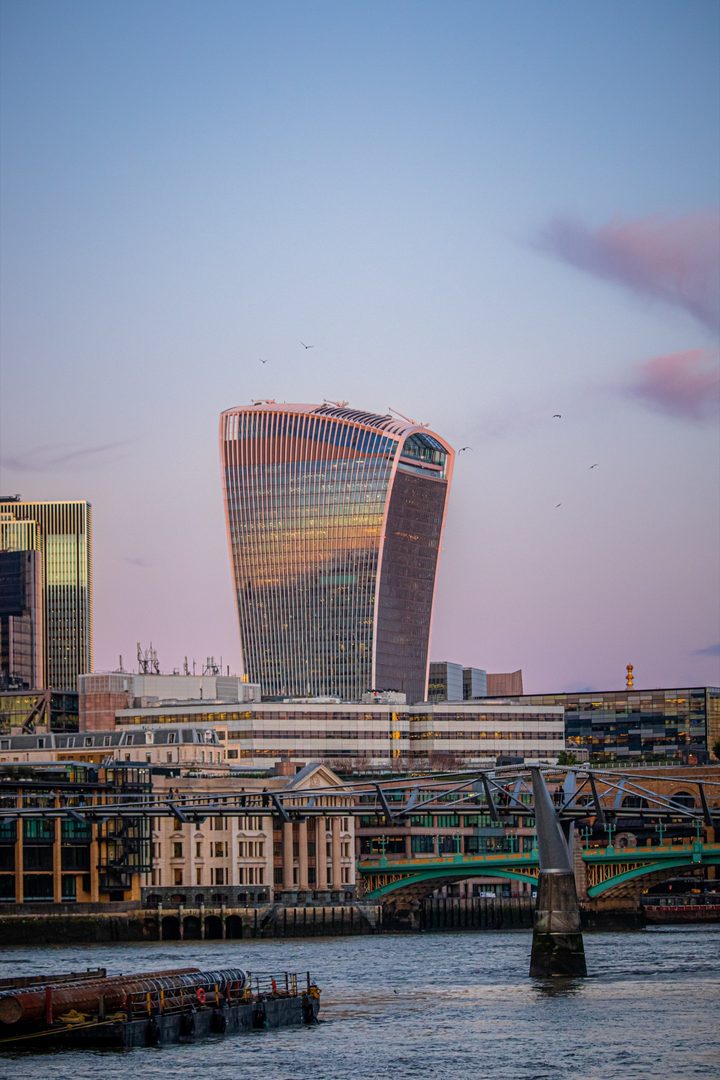
The idea: three layers
Every app does the same thing. The photo goes at the bottom, the text in the middle, and a cut-out of the subject on top. The cut-out covers the text wherever the subject is.
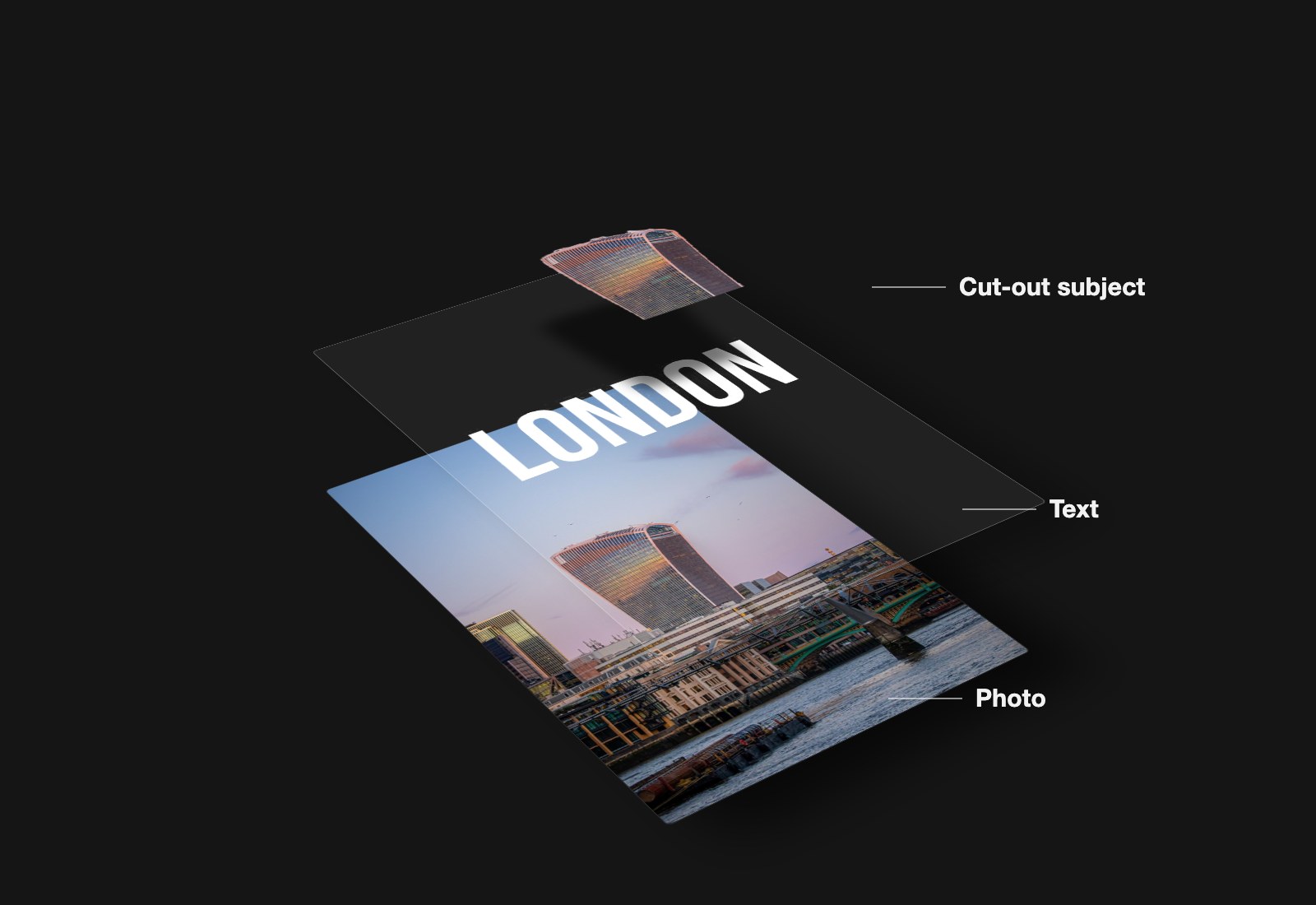
The only hard part is the cut-out. Canva and Photoshop both make it for you.
In Canva
You need Canva Pro. The tools that cut out a subject (Magic Grab and BG Remover) aren't on the free plan.
- Add your photo to the page, then duplicate it so two copies sit exactly on top of each other.
- Click the top copy, click Edit in the toolbar and choose BG Remover. The top copy is now just the subject.
- Add your text and make it big.
- With the text selected, open Position and click Backward until the text sits under the cut-out but over the full photo.
If the text shows in front of the subject, it's still above the cut-out. Click Backward again.
In Photoshop
- Type your text over the photo.
- Select the Background layer and press Command/Ctrl + J to copy it. Drag the copy above the text layer.
- With the copy selected, choose Select > Subject.
- Click Add Layer Mask at the bottom of the Layers panel. The copy now shows only the subject, on top of the text.
If the edges look rough, open Select and Mask before step 4 and nudge Smooth and Shift Edge. Paint the mask white to bring the subject forward, black to push it back.
Which to use
- Canva: fine if you already have Pro and make posts there. The cut-out can't be touched up, and moving the text later means juggling layers again.
- Photoshop: the best edges, for print or client work. Slow for a quick post.
- On iPhone: layrd does all three layers in one tap and lets you move the text afterwards. Your first three are free.
Just want to try it once? The free text behind image tool makes the cut-out in your browser.
Frequently asked questions
Can I do this in Canva for free?
No. Cutting out the subject needs Canva Pro. The free browser tool does the same effect at no cost.
Why does my text show through the subject in Photoshop?
The mask is on the wrong layer. It belongs on the photo copy that sits above the text, not on the text itself.