How to split a panorama into an Instagram carousel
Cut one wide photo into slides that join up as people swipe. Four steps on iPhone, plus the sizes to use.


Make it in four steps
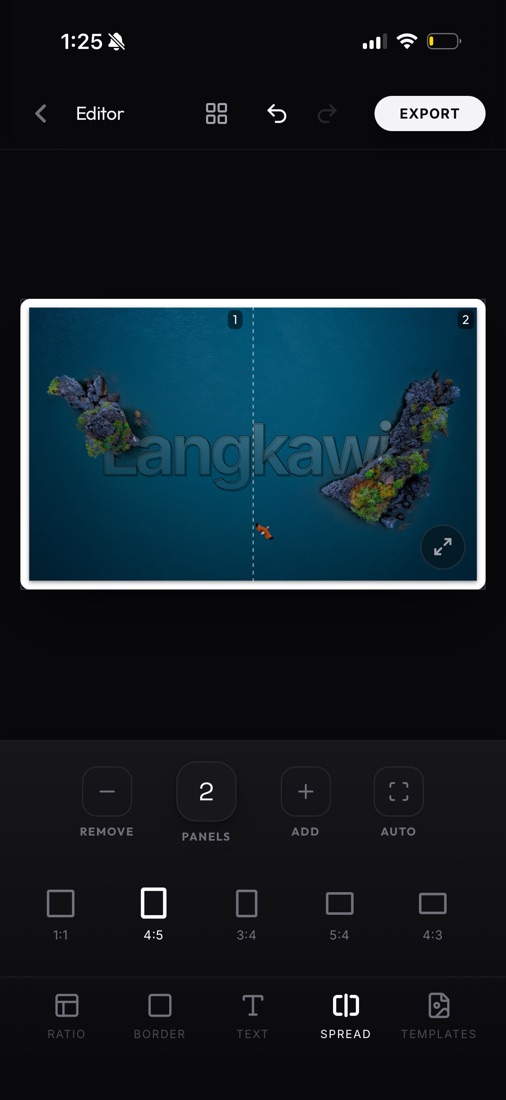
Open your photo and tap Spread. Any wide photo works, not only a panorama.
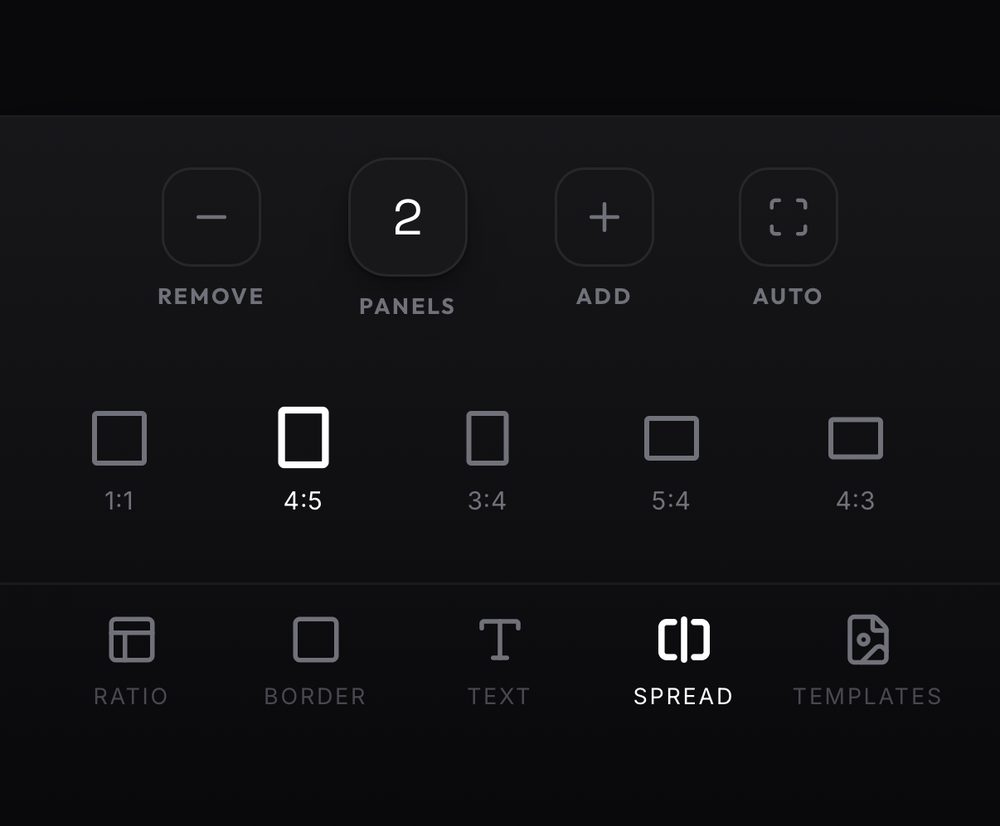
Pick the number of slides and 4:5. Use + and − to set the slides. 4:5 is the tallest shape Instagram allows in the feed.
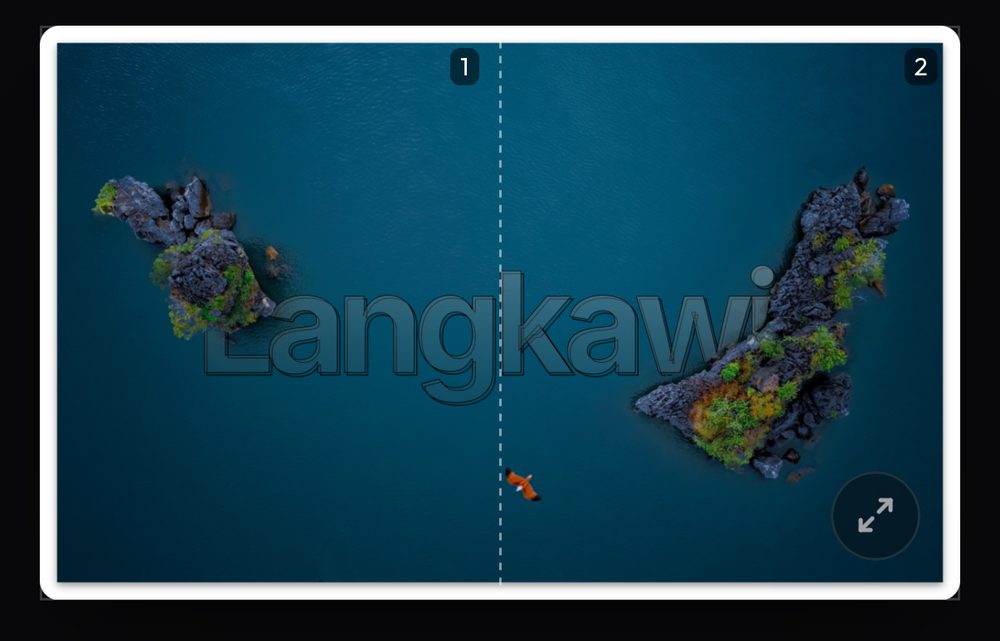
Keep faces off the cut line. The dashed line is where one slide ends. Drag the photo until nothing important sits on it.
Export, then post them in order. The slides land in a layrd album in Photos. In Instagram, select them left to right so slide 1 comes first.
Sizes at a glance
Every slide is 1080 px wide. The full photo is that times the number of slides.
| Slides | Full photo (4:5) | Full photo (square) |
|---|---|---|
| 2 | 2160 x 1350 | 2160 x 1080 |
| 3 | 3240 x 1350 | 3240 x 1080 |
| 4 | 4320 x 1350 | 4320 x 1080 |
| 5 | 5400 x 1350 | 5400 x 1080 |
Instagram crops every slide to the shape of the first one, and allows up to 20 slides.
No app? Split it by hand
- Make a canvas the size from the table, for example 3240 x 1350 for three slides.
- Fit the panorama to it.
- Export three crops: 0 to 1080, 1080 to 2160 and 2160 to 3240 px across.
Off by one pixel and the join shows, which is why an app is easier.
Frequently asked questions
How many slides should I use?
Two or three for most panoramas. More slides means each one shows less, so the scene gets harder to read.
Why don't my slides line up?
They were cut at different sizes. Every slide must be exactly the same width and height.
Does layrd upload my photo?
No. The split happens on your iPhone.