How to add text to a photo on iPhone
Three ways to put text on a photo on iPhone: free with the Photos app, with a text app like Phonto, or behind your subject with layrd. Steps and examples.

Pick by what you want the text to do. A caption on top is free with the Photos app. Lots of fonts means a text app. Text that sits behind the person or building means layrd.

1. Free: the Photos app
Good for a quick note or a date. You can't choose many fonts.
- Open the photo in Photos and tap Edit.
- Tap the Markup button (the pen tip at the top).
- Tap +, then Add Text, and type.
- Use the Aa button for font, size and alignment, drag the box into place, and tap Done.
Markup saves over the photo. To keep the original, duplicate it first (… > Duplicate).
2. More fonts: a text app


Phonto is free and lists more than 400 fonts, plus curved text, outlines and shadows. Add Text is similar, with unlimited text layers. Both put text on top of the photo. Neither can tuck it behind a person.
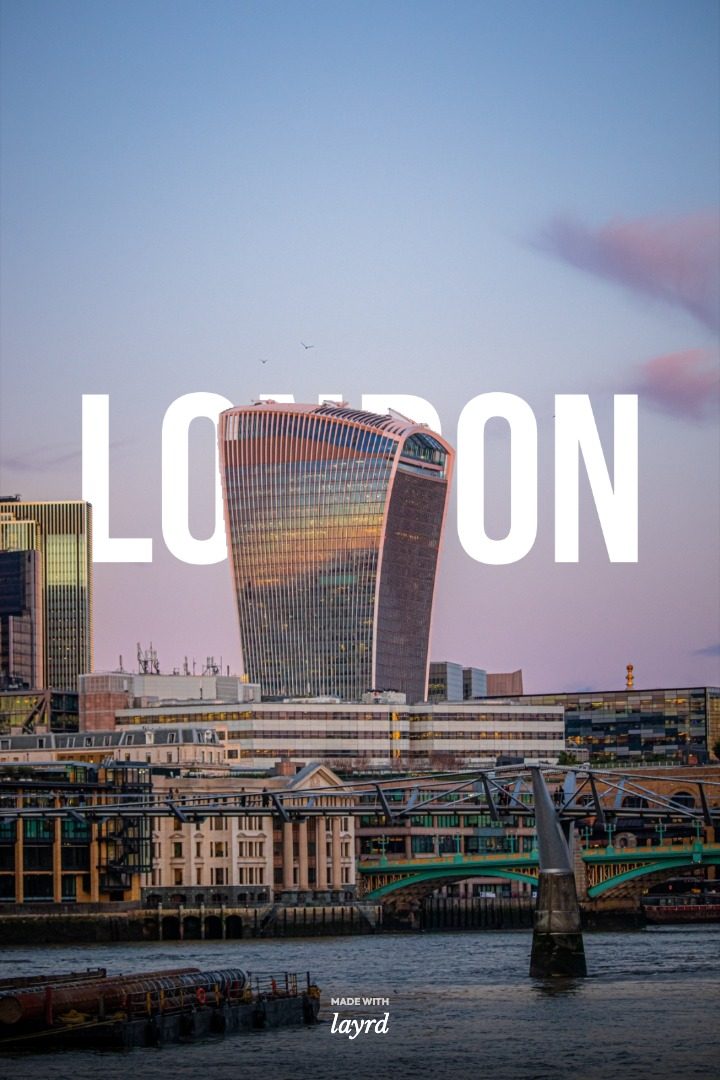
3. Text behind the subject: layrd

- Open your photo in layrd and tap Text. Type one short word.
- Choose Subject. layrd finds the people and objects and puts the text behind them.
- Make the word big, so the subject only covers the bottom of the letters.
- Tap Save.
The display fonts are built in. Pro adds more than 1,500 Google Fonts and lets you import your own font files. See the full walkthrough with screenshots in how to put text behind a person on iPhone.
Tips that work in any app
- Short wins. One word or a place name reads at a glance in the feed.
- Big and heavy. Thin type gets lost on a phone screen. See the best fonts for text-behind photos.
- Take the colour from the photo. Text in a tone that's already in the scene looks like it belongs.
Frequently asked questions
How do I add text to a photo on iPhone for free?
Use Markup in the Photos app: Edit > Markup > + > Add Text.
What's the best Phonto alternative?
Add Text, if you want the same kind of app. If you want text behind your subject, layrd or the free browser tool.